How to Add Sound Effects to OBS Studio & Streamlabs
Enhancing Live Streams with Real-Time Sound Effects
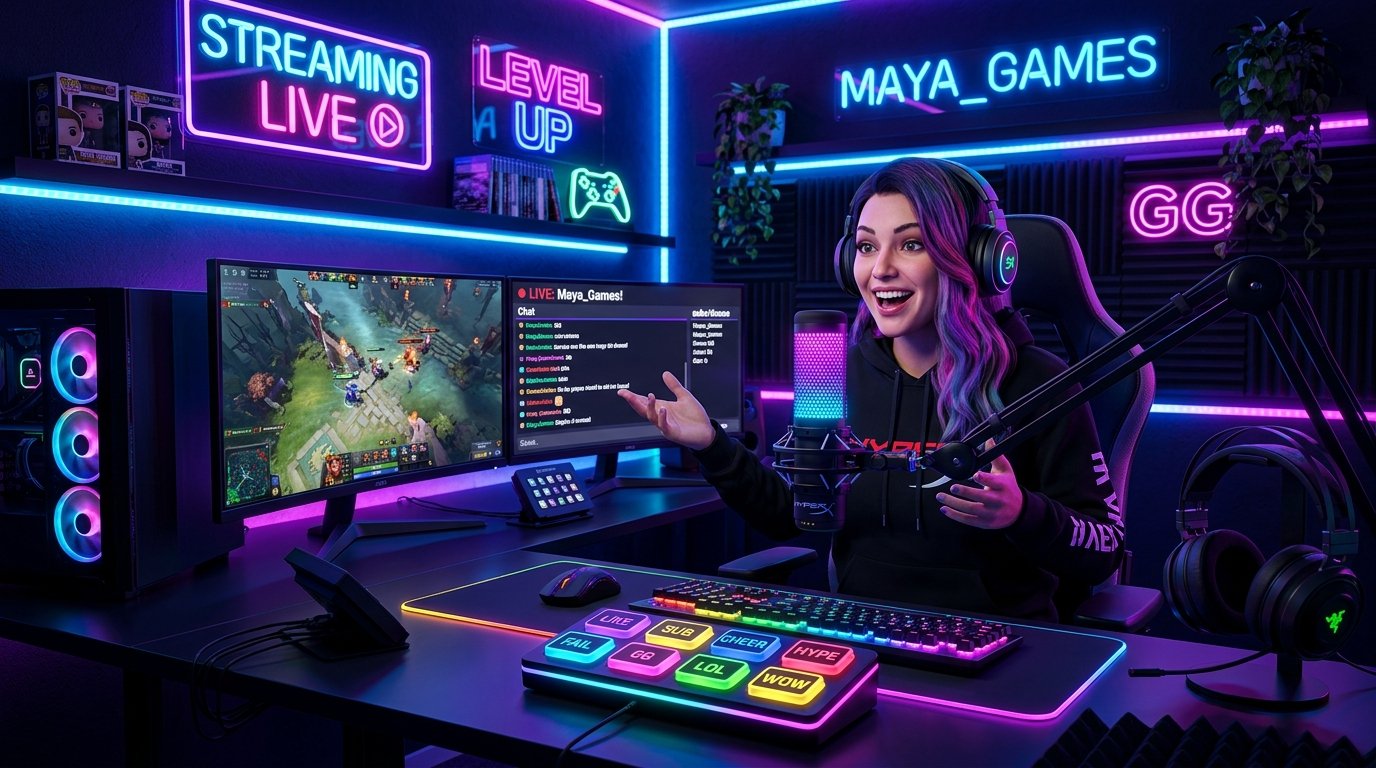
Live streaming on Twitch, YouTube Live, or Kick requires spontaneous audience interaction. Triggering victory horns, defeat stingers, and funny gaming sound clips on command keeps stream chat engaged during gameplay sessions.
Method 1: Using OBS Media Source Hotkeys (Built-in)
OBS Studio allows you to trigger audio files natively without third-party plugins:
- Open OBS Studio and locate the Sources panel in your active scene.
- Click + (Add) and select Media Source. Name it (e.g.
SFX_AirHorn). - Uncheck Loop, click Browse, and choose your downloaded MP3 sound clip from Gaming Sounds.
- Go to Settings -> Hotkeys, scroll to your Media Source, and assign a keyboard shortcut (e.g.,
Numpad 1) to Restart / Play.
Method 2: Virtual Audio Cable & Stream Deck Integration
For advanced multi-sound soundboard setups, route audio through a virtual audio cable (like VB-Audio Cable or VoiceMeeter):
- Set your soundboard software output device to
CABLE Input. - In OBS Studio, add an Audio Input Capture source set to
CABLE Output. - Bind your sound buttons to an Elgato Stream Deck or digital hotkey pad for 0-delay playback.
Configuring Separate VOD Audio Tracks
To prevent copyright audio drops from being archived in Twitch VODs, split your OBS audio routing:
- Go to Settings -> Output -> Streaming and enable Twitch VOD Track (Track 2).
- In Advanced Audio Properties, assign your Mic and Game to Tracks 1 & 2, while assigning Soundboard SFX to Track 1 only.
Free Sound Effects Featured in This Guide
Play inline or download clean 192 kbps MP3s directly into your editing timeline.
Article Topics & Tags:
#OBS Studio
#Streamlabs
#Twitch
#Live Streaming
#Soundboard