How to Add Sound Effects to CapCut (Desktop & Mobile Guide)

Introduction
Adding custom sound effects (SFX) to your CapCut video edits dramatically improves viewer engagement. Whether you are editing TikTok Reels, YouTube Shorts, or gaming highlights, pairing visual cuts with punchy audio drops creates professional polish. In this step-by-step guide, you will learn how to download, import, and align MP3 sound effects in CapCut on both Mobile (iOS/Android) and Desktop (Windows/macOS).
Step 1: Download Your MP3 Sound Effects
Before launching CapCut, download your target sound buttons in high-quality MP3 format directly to your device storage:
- Browse categories on MyMemeSound.com (such as Sound Effects or Meme Sounds).
- Click the Download MP3 button to save the audio file to your mobile
Downloadsfolder or desktop storage.
Step 2: Import Custom Audio into CapCut
On CapCut Mobile (iOS / Android):
- Open your CapCut project timeline.
- Tap Audio on the bottom toolbar, then select Sounds.
- Tap the Folder icon (File Manager) and select From Device.
- Search for your downloaded MP3 sound effect and tap the green + (Plus) button to add it to your audio track.
On CapCut Desktop (Windows / Mac):
- Open CapCut Desktop and navigate to the Media tab in the top-left panel.
- Click Import and choose your downloaded MP3 audio files.
- Drag the sound effect from the media pool directly onto the audio timeline below your video track.
Step 3: Align Sound Effects to Visual Cut Points
Precise audio timing is essential for punchy comedy and smooth transitions:
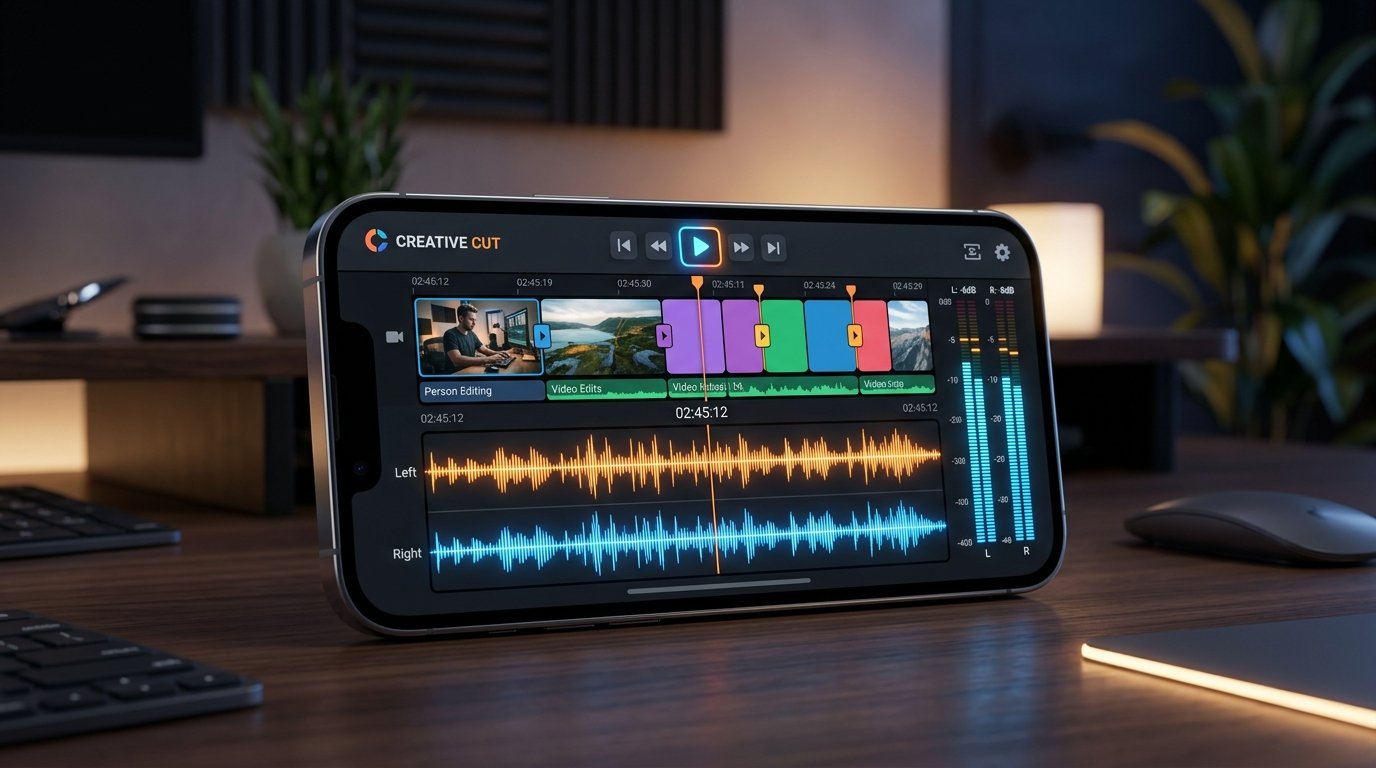
- Zoom in on the timeline: Pinch to zoom on mobile or scroll horizontally on desktop to view exact waveform peaks.
- Align waveform spike: Place the initial audio peak exactly on the video frame where visual action occurs (e.g., text pop-up, screen cut, or meme reaction).
- Adjust Volume & Ducking: Tap the audio clip, open Volume settings, and set levels between
-3 dBto-6 dBso the sound effect punch does not clip or drown out voiceovers.
Pro Tips for CapCut Sound Design
- Add Fade In / Fade Out: Apply a
0.1sfade to prevent audible clicks at clip boundaries. - Keyframe Volume Automation: Lower background music volume by
50%during the exact second a meme sound effect plays.
Free Sound Effects Featured in This Guide
Play inline or download clean 192 kbps MP3s directly into your editing timeline.
Article Topics & Tags:
#CapCut
#Video Editing
#Sound Effects
#Mobile Editing
#Tutorials